Loading Photos from your Phone
Bossfotos allows the photographer to load photos directly from their phone. Although you can just load directly from your camera roll the real benefit is when you attach your Pro Camera’s SD card to your phone via a SD card reader (with a C-connector). Then the photos will load directly from the SD card to Bossfotos.
It is important that the photos don’t pass through your phone/whatsapp/gallery or any other app on your phone or the photos will be altered and will change the metadata and photo names. The key is to go DIRECTLY from the SD card to Bossfotos.
Follow these steps carefully to get this feature to work properly.
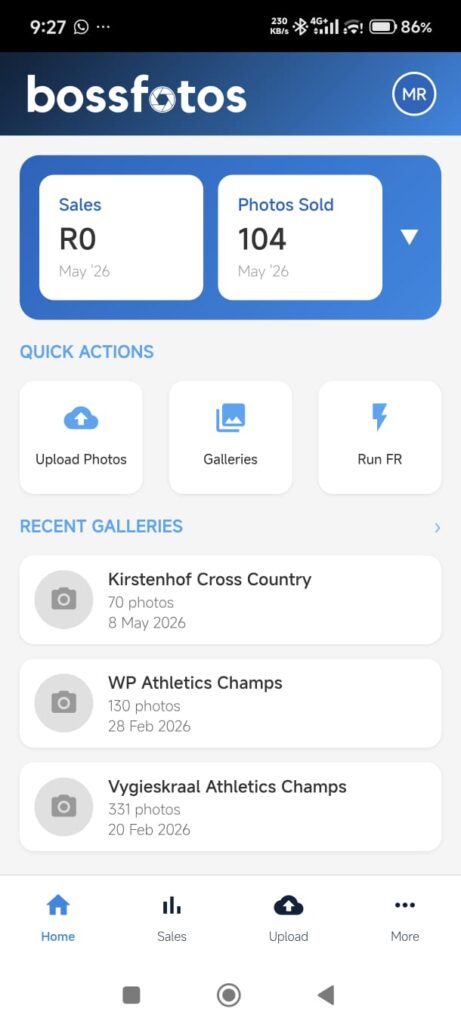
Login to bossfotos on your browser in your phone as per usual and select “Upload Photos”
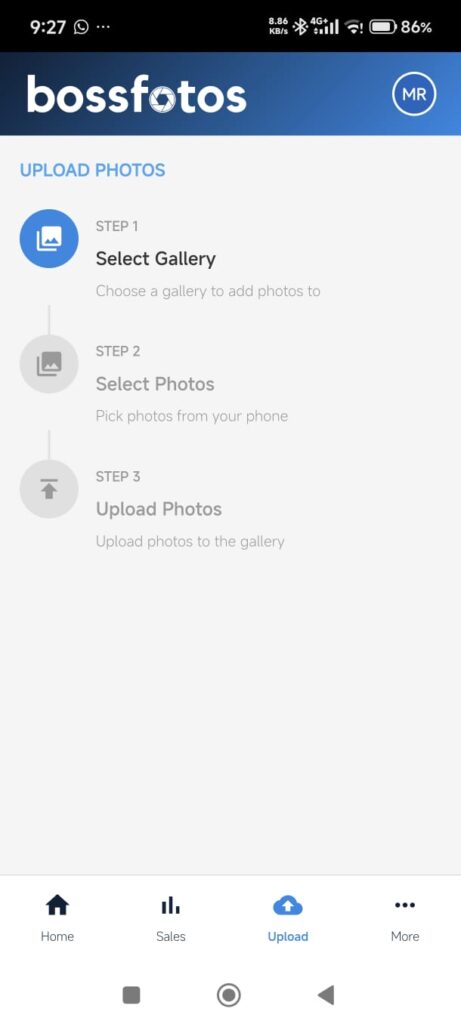
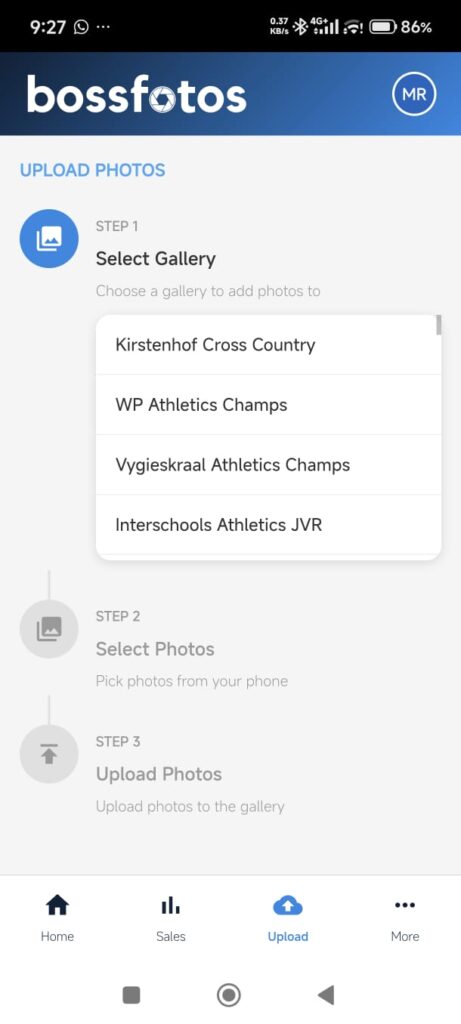
You will be presented with a three step process. Step 1 is to select the gallery you are going to upload to. Note you need to have created the gallery previously on your desktop.
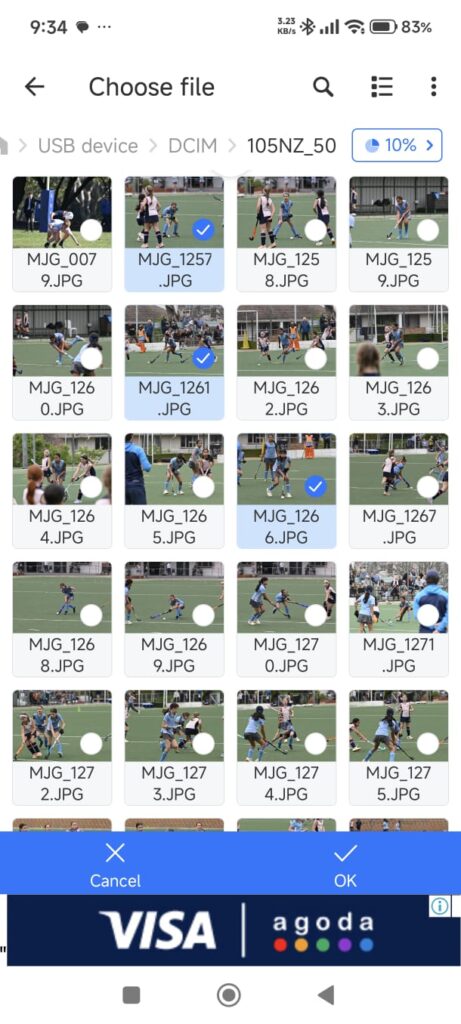
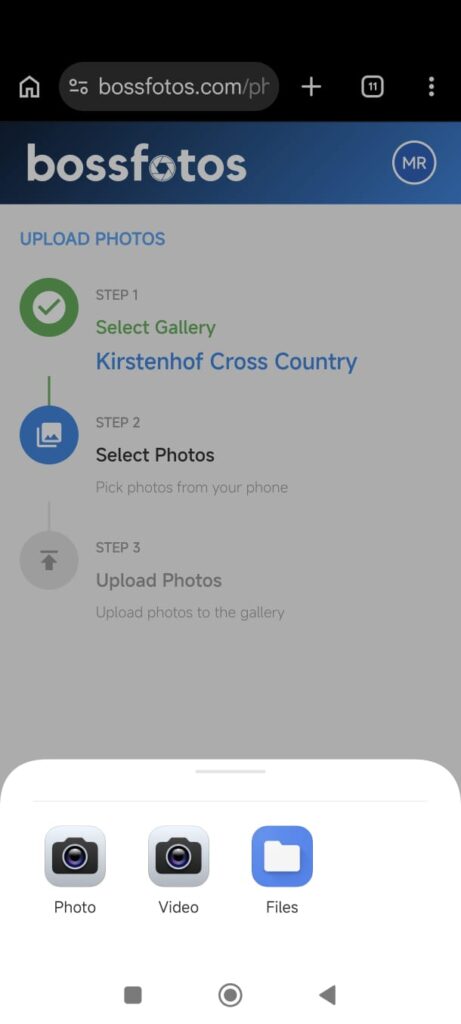
Step 2 is to Select the photos from your SD card reader. This is the important step to get right. When you click on select photos you must be presented with these options and you must choose “files”.
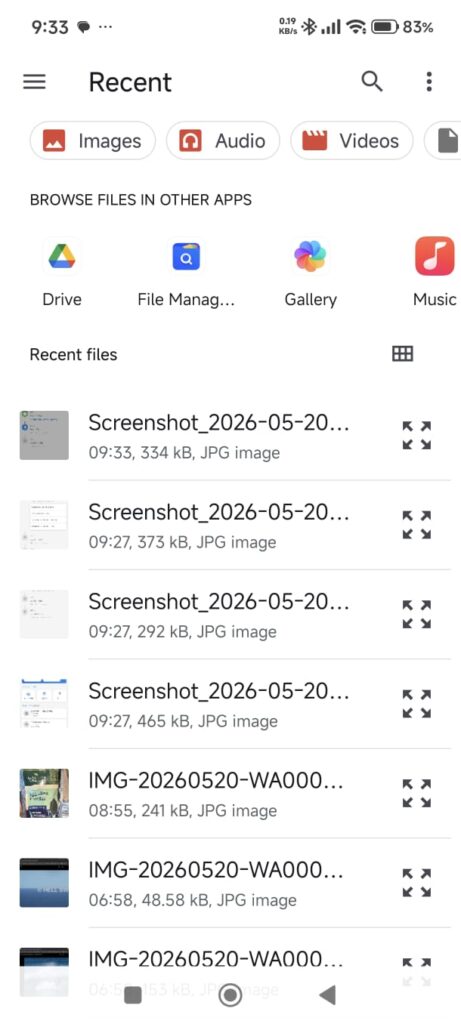
This will navigate you to your own phones device which will look different on different phones. The key is to go through your file manager and NOT through your gallery. This will then search for your USB connected device.
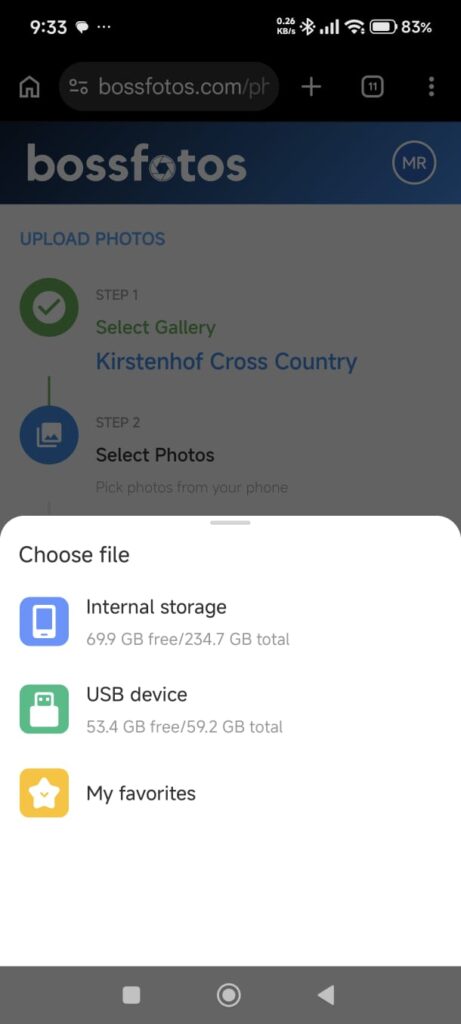
You do not want to select internal storage. You want to select USB device.
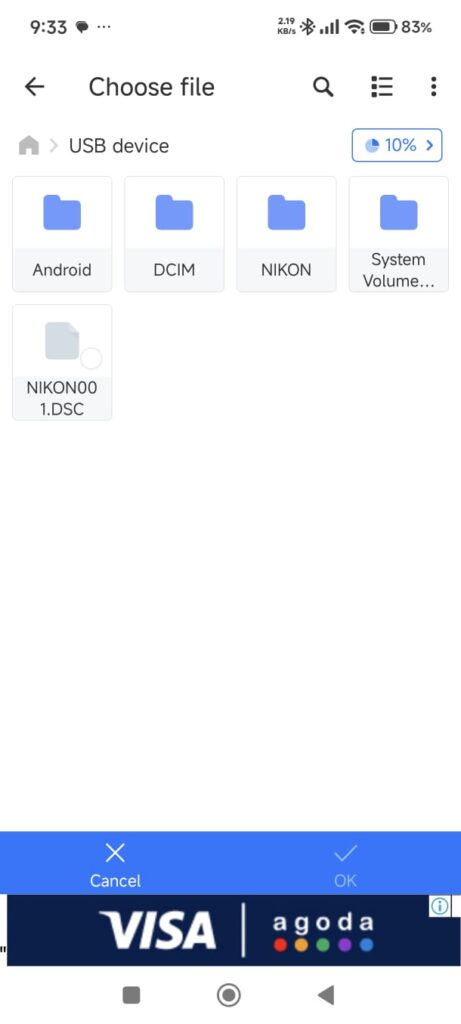
From there you will navigate to the correct folder on your SD card. Most likely the DCIM folder.
Then just select all the photos you need to upload and submit. Do not disconnect during the upload and try to keep your phone awake and in a strong 5g or wifi signal.